
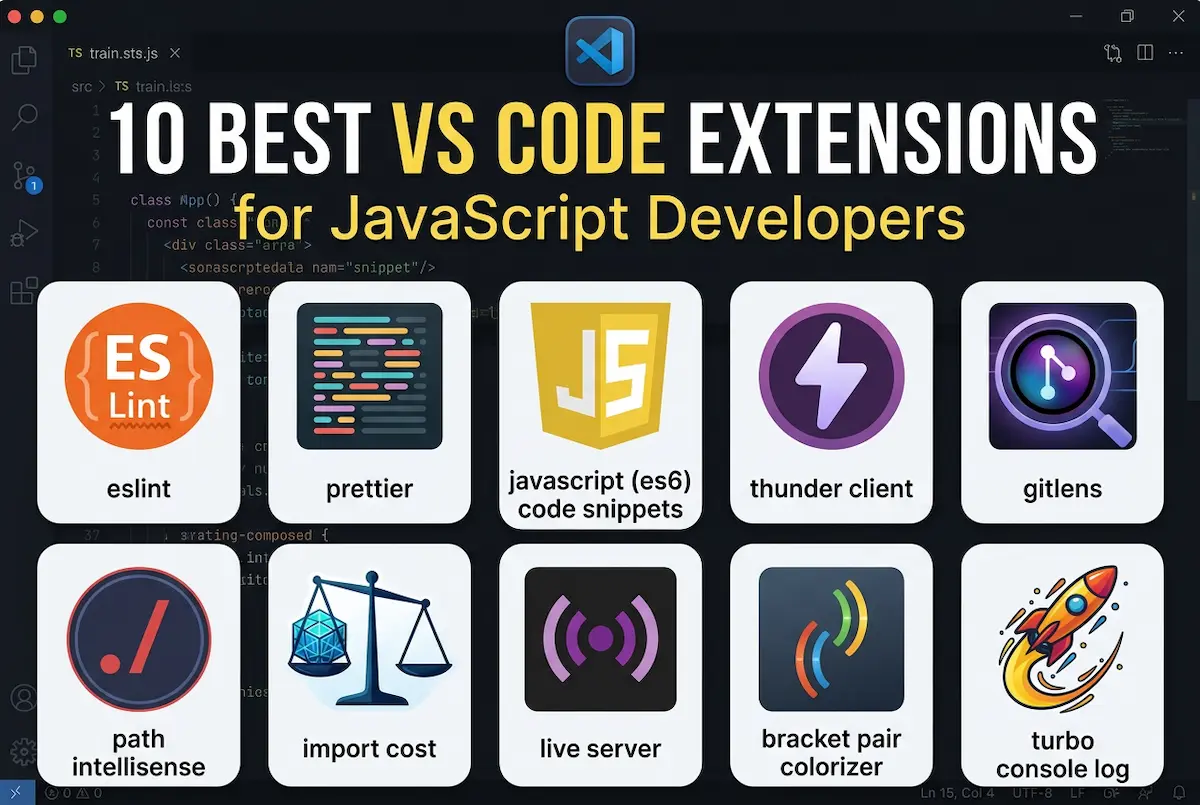
Visual Studio Code is the most popular code editor for JavaScript developers. But a plain VS Code installation is just the beginning. The right extensions can double your productivity, catch errors before they happen, and make coding actually enjoyable.
I’ve tested dozens of VS Code extensions over the past 7 years of web development. Here are the 10 that I install on every new machine — the ones that save me hours every week.
Table of Contents
1. ESLint

Installation: 30+ million downloads
ESLint is non-negotiable. It analyzes your JavaScript code in real-time and highlights syntax errors, style issues, and potential bugs before you even run the code.
Why you need it: It catches undefined variables, unused imports, and common JavaScript pitfalls instantly. No more debugging simple typos for 20 minutes.
2. Prettier – Code Formatter
Installation: 25+ million downloads
Stop arguing about semicolons, tabs vs spaces, or where brackets should go. Prettier formats your entire codebase consistently with one keyboard shortcut (or automatically on save).
Why you need it: Consistent code is easier to read, easier to review, and easier to debug. Set it and forget it.
3. JavaScript (ES6) Code Snippets
Installation: 10+ million downloads
This extension provides hundreds of JavaScript snippets for ES6 syntax. Type clg and press Tab — it expands to console.log(). Type aef and get an entire async function.
Why you need it: It eliminates repetitive typing. What used to take 10 seconds now takes 1 second.
4. Thunder Client
Installation: 5+ million downloads
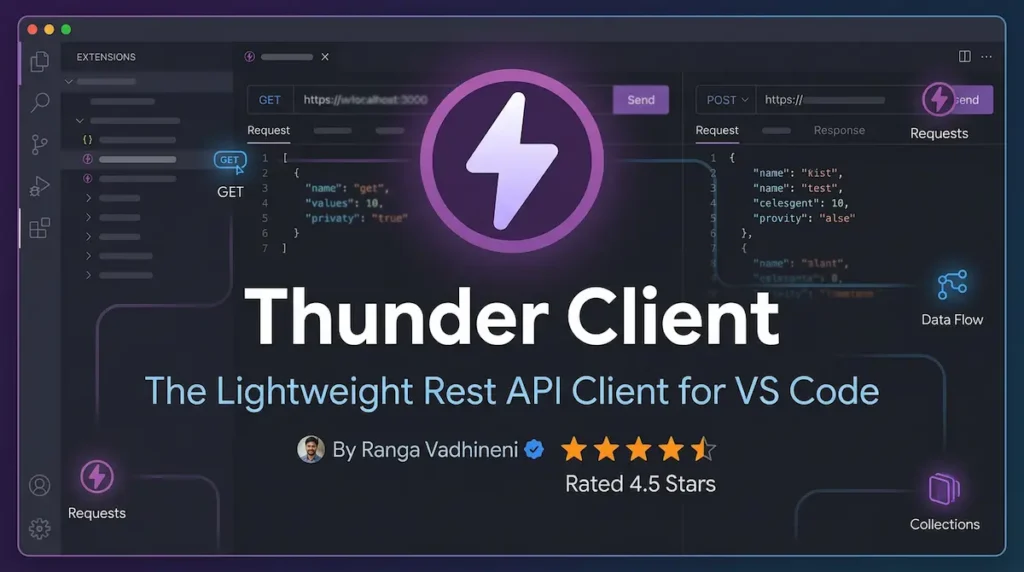
Thunder Client is a lightweight API testing tool built directly into VS Code. Think of it as Postman, but you never have to leave your editor.
Why you need it: Test your backend endpoints, debug API responses, and write request collections — all without switching applications.
Test these APIs directly in VS Code
5. GitLens
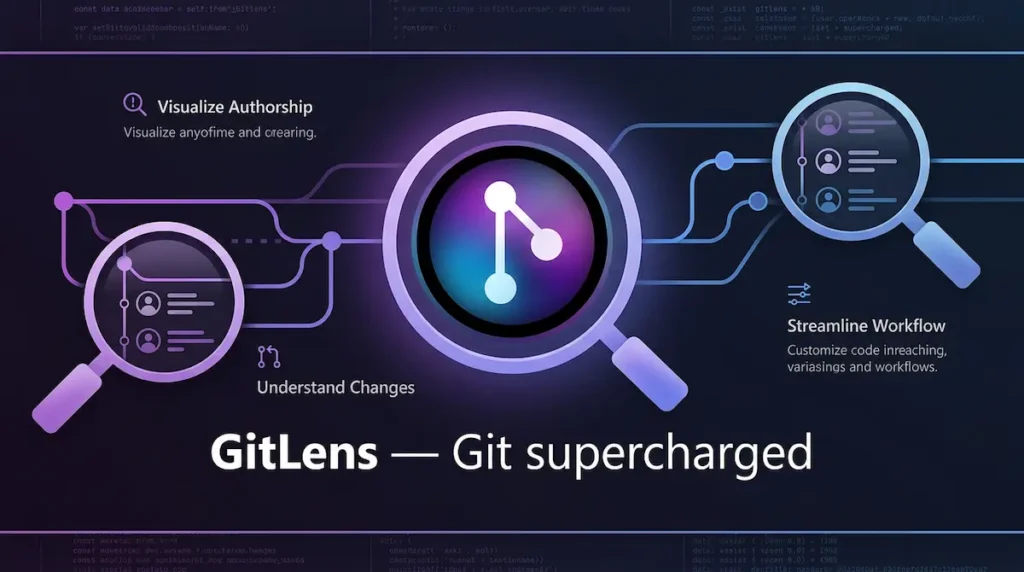
Installation: 25+ million downloads
GitLens supercharges Git inside VS Code. It shows you who wrote each line of code, when it was written, and why (via commit messages).
Why you need it: When something breaks, you can immediately see who changed what. It makes debugging team codebases infinitely easier.
Explore top GitHub repositories for learning
6. Path Intellisense
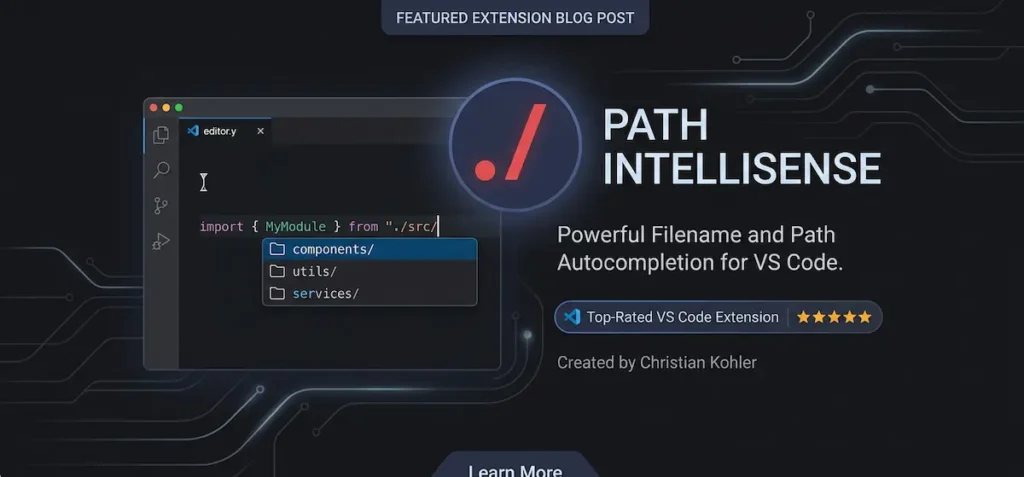
Installation: 10+ million downloads
This simple extension autocompletes file paths when you’re writing import statements. Start typing ./components/ and it shows you every file in that folder.
Why you need it: No more memorizing folder structures or copy-pasting file names. Just type and select.
7. Import Cost
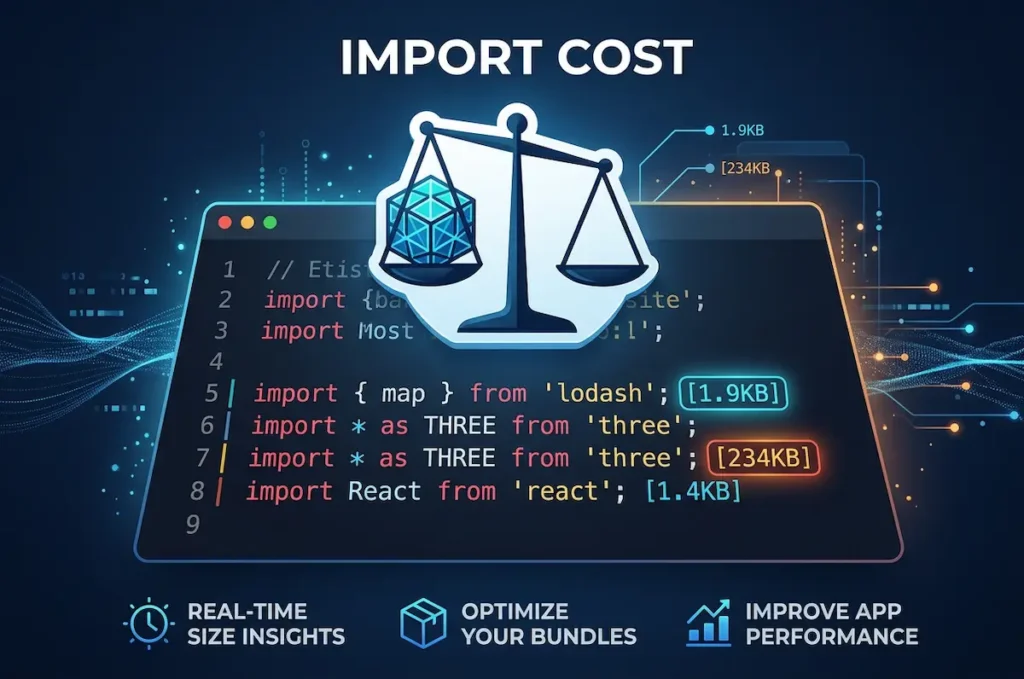
Installation: 2+ million downloads
Import Cost displays the size of npm packages directly next to your import statements. It shows you exactly how much bundle size each dependency adds.
Why you need it: Bloated JavaScript bundles slow down websites. This extension helps you make informed decisions about which packages to use.
8. Live Server
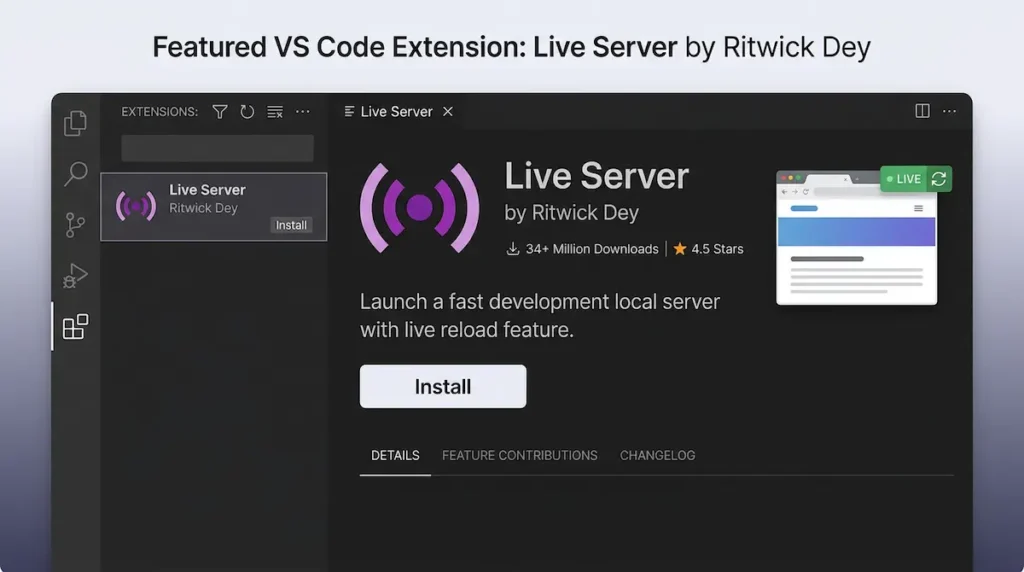
Installation: 20+ million downloads
Live Server launches a local development server with live reload. Every time you save your HTML, CSS, or JavaScript file, the browser refreshes automatically.
Why you need it: Instant feedback while coding. No more manually refreshing your browser hundreds of times per day.
9. Bracket Pair Colorizer

Installation: Now built into VS Code natively, but the concept remains essential
This feature (now native in VS Code) colors matching brackets so you can easily see where nested code blocks begin and end.
Why you need it: Deeply nested JavaScript can be hard to read. Colored brackets show you exactly which opening bracket matches which closing bracket.
10. Turbo Console Log

Installation: 1+ million downloads
Select a variable, press `Ctrl + Alt + L` (Windows) or `Cmd + Alt + L` (Mac), and Turbo Console Log inserts a `console.log` statement for that variable. It also adds line numbers automatically.
Why you need it: Debugging with console.log is fast and effective. This extension makes it even faster.
How to Install All Extensions at Once
You don’t need to install each extension manually. VS Code supports Settings Sync, which backs up your extensions to the cloud. But if you’re setting up a new machine, create a list:
- Open VS Code
- Go to Extensions (`Ctrl + Shift + X`)
- Search and install each extension above
- Or use the command line:
code --install-extension <extension-name>
Choosing a framework? Compare React, Vue, and Angular
Final Thoughts
These 10 extensions have saved me hundreds of hours over the years. Start with ESLint and Prettier — they make the biggest difference. Then add the others as you need them.
Which VS Code extension is your favorite? Let me know in the comments below.