

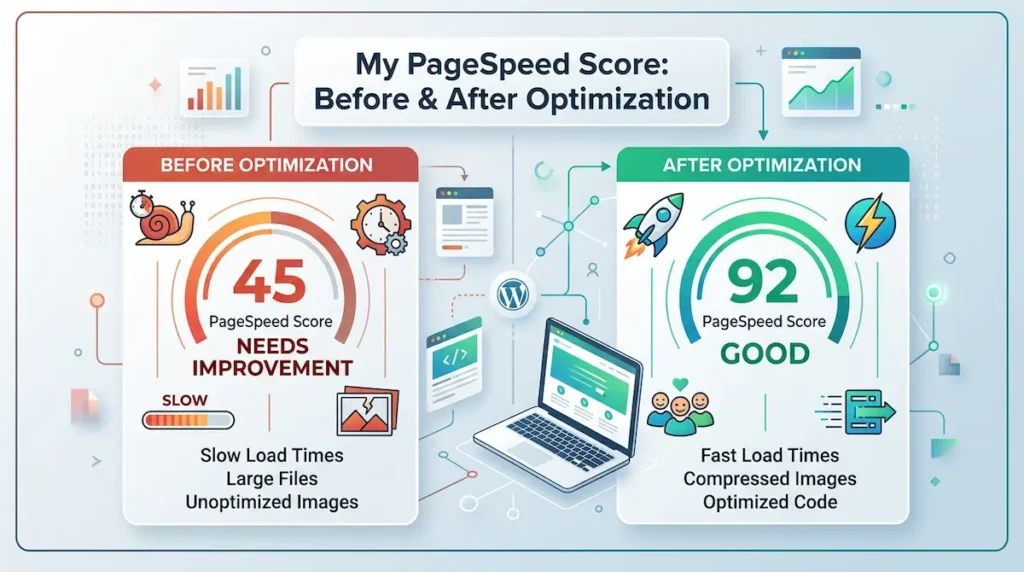
When I first launched my website, Google PageSpeed Insights gave me a mobile score of 50. My desktop score was 100, but mobile was failing. Users on phones were waiting 4+ seconds to see my content.
After two weeks of focused optimization, my mobile score climbed to 90. Here is exactly what I changed and the results each fix delivered.
Table of Contents
Starting Point: The Problem
My initial scores:
- Desktop: 100 (good)
- Mobile: 50 (poor)
- Largest Contentful Paint (LCP): 4.2 seconds
- First Input Delay (FID): 85ms (passing)
- Cumulative Layout Shift (CLS): 0.15 (failing)
The biggest issues were the featured image (too large, no dimensions), unoptimized images throughout my articles, and a few render-blocking JavaScript files. Here is how I fixed each problem.
Fix 1: Compress All Images (Biggest Impact)
My featured images were 500KB-800KB each. My article screenshots were 200KB-400KB. This was killing my mobile load time.
What I did: Ran all existing images through ShortPixel’s bulk optimizer. I also installed a plugin to automatically convert future uploads to WebP format.
Result: Featured images dropped to 80KB-120KB. Screenshots dropped to 30KB-60KB. LCP improved from 4.2 seconds to 2.8 seconds.
Core Web Vitals explained in detail
Fix 2: Add Width and Height Attributes to All Images
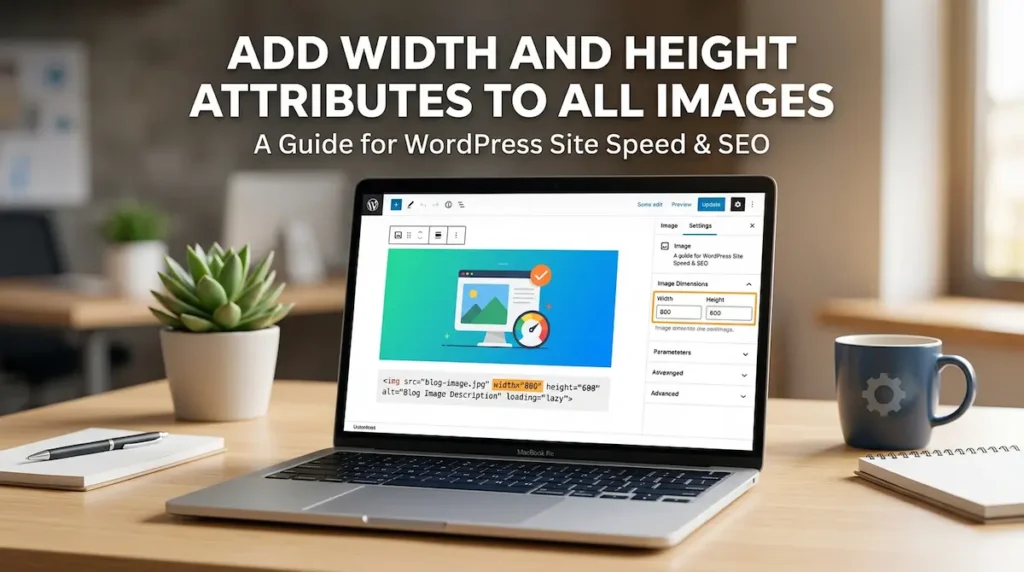
When you do not specify width and height on images, the browser reserves no space for them. As images load, content jumps down the page. This directly hurts your CLS score.
What I did: Went through every article and added width and height attributes to all images. For future posts, I made sure to add them at upload time.
Result: CLS improved from 0.15 to 0.06 (passing).
Fix 3: Switch to a Lightweight Theme
My original theme was loading multiple CSS and JavaScript files on every page, even when they were not needed. A single page might load 10-15 CSS files.
What I did: Switched to GeneratePress (free version). It loads only what each page actually needs. The base theme is under 30KB total.
Result: Total CSS and JavaScript reduced by 70%. Time to First Byte (TTFB) improved from 400ms to 220ms.
Cloudways hosting also improves speed
Fix 4: Eliminate Render-Blocking Resources
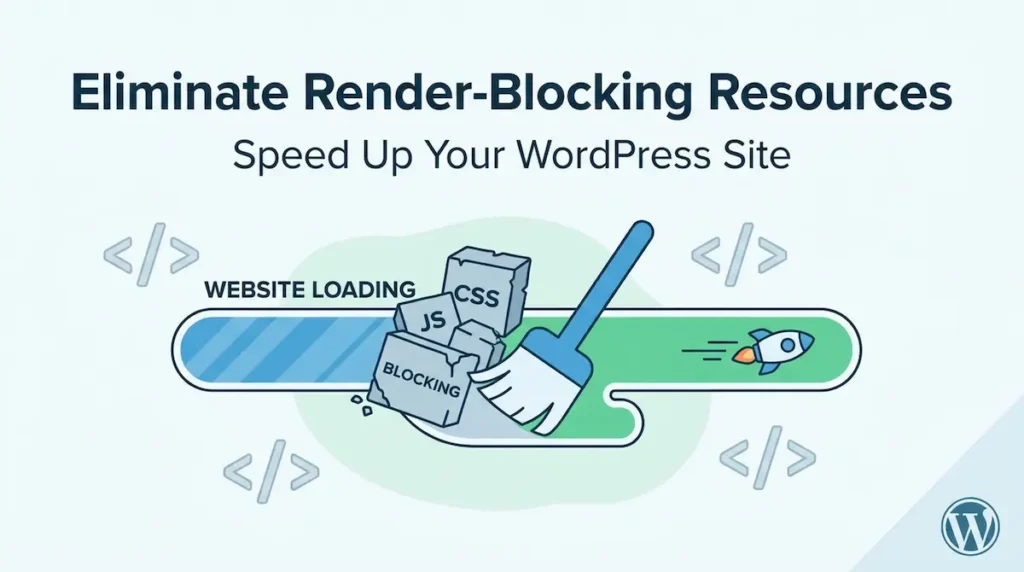
Several CSS and JavaScript files were loading in the page head, blocking the browser from rendering content until they finished downloading and parsing.
What I did:
- Used LiteSpeed Cache to defer all JavaScript files to load after the page content
- Inlined critical CSS for above-the-fold content
- Removed unused CSS from plugins that were loading on all pages
Result: First Contentful Paint (FCP) improved from 2.1 seconds to 1.2 seconds.
Fix 5: Enable Caching and CDN
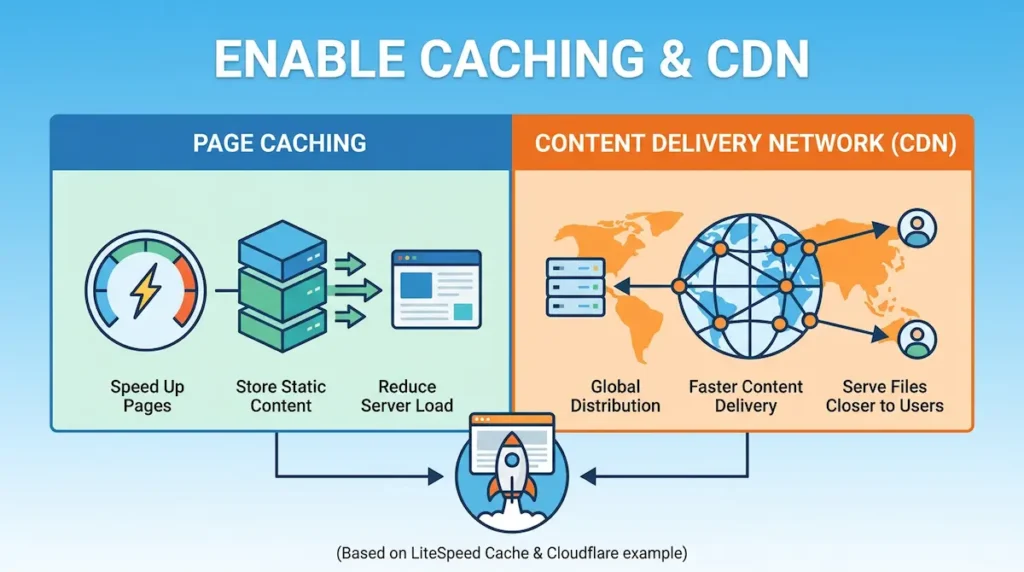
Without caching, every page load triggers PHP execution and database queries. With caching, static HTML versions are served directly.
What I did: Enabled page caching in LiteSpeed Cache. Added a Content Delivery Network (Cloudflare free tier) to serve images and static files from servers closer to my visitors.
Result: Server response time dropped from 380ms to 85ms. Time to Interactive improved significantly.
Fix 6: Optimize Featured Image Specifically for Mobile
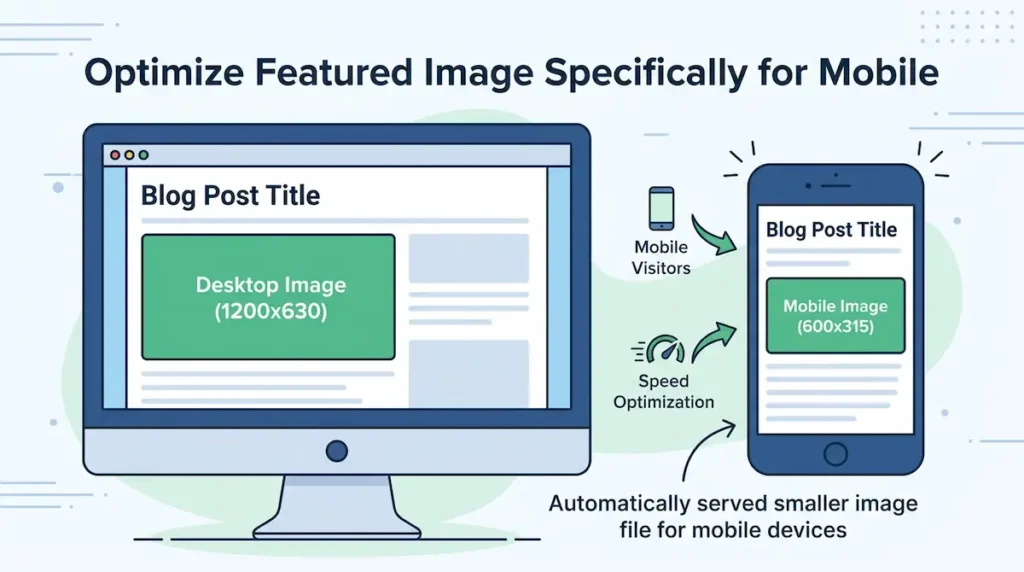
The desktop featured image (1200x630px) was being served to mobile devices, even though it would display at a much smaller size on phone screens. This was wasteful.
What I did: Installed the Mobile Featured Image plugin. Now each post has a desktop image (1200×630) and a smaller mobile image (600×315). Mobile visitors get the smaller file automatically.
Result: Mobile LCP improved from 2.8 seconds to 1.9 seconds.
Fix 7: Reduce External Scripts and Fonts
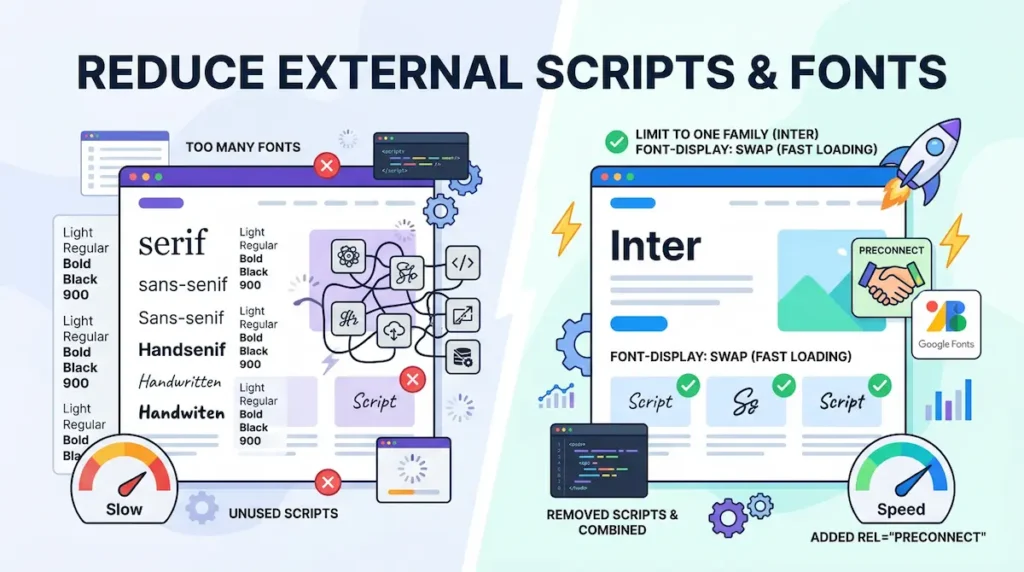
External resources like Google Fonts, Font Awesome, and analytics scripts each require additional network requests. Each request adds latency, especially on mobile networks.
What I did:
- Limited external fonts to one font family instead of multiple weights
- Used font-display: swap to prevent invisible text during font loading
- Removed unused analytics scripts and combined where possible
- Added rel=”preconnect” for external domains so the browser can connect early
Result: Reduced total network requests from 42 to 24 per page. Reduced total page weight from 2.1MB to 850KB.
The Complete Results After All Fixes
| Metric | Before | After | Improvement |
|---|---|---|---|
| Mobile PageSpeed Score | 50 | 90 | +40 points |
| Largest Contentful Paint (LCP) | 4.2 seconds | 1.9 seconds | ↓ 55% |
| First Input Delay (FID) | 85ms | 52ms | ↓ 39% |
| Cumulative Layout Shift (CLS) | 0.15 | 0.06 | ↓ 60% |
| Total Page Weight | 2.1MB | 850KB | ↓ 60% |
| Network Requests | 42 | 24 | ↓ 43% |
Which Fix Had the Biggest Impact?
Image optimization (Fix 1 and Fix 6) had the single biggest impact. Image bytes accounted for over 60% of my total page weight. Compressing images and serving mobile-specific featured images cut that weight by over 70%.
The second biggest impact was switching to a lightweight theme (Fix 3). Removing unnecessary CSS and JavaScript cleaned up the foundation of every page.
What I Would Do Differently Next Time
- Run speed tests from the very first day (so I catch issues earlier)
- Set up image compression before uploading any images (rather than retroactively)
- Choose a lightweight theme from the start (avoid theme migration entirely)
Tools I Used (All Free)
- Google PageSpeed Insights: Main testing tool
- ShortPixel: Bulk image compression
- LiteSpeed Cache: Caching, deferring, minification
- Mobile Featured Image: Serve smaller images to mobile
- GeneratePress: Lightweight theme
- Cloudflare: Free CDN
Speed is a ranking factor. See more SEO tips
Final Thoughts
Going from 50 to 90 on PageSpeed Insights took focused work over two weeks. The good news is that each fix built on the previous ones. Image optimization alone got me halfway there. Fixing render-blocking and adding caching got me the rest of the way.
If your site is slow, start with image optimization. It is the highest-impact, lowest-effort fix. Then check your theme quality. Then handle caching. You can achieve a fast site without hiring a developer.
What is your current PageSpeed score? Let me know in the comments below.
✍️ Want to Contribute?
WebDevToolkit accepts high-quality guest posts from web developers, SEO professionals, and digital marketers.
✅ Do-follow backlink included
✅ Published within 5 days
✅ Shared with 1,000+ monthly readers